
🧭 Step 1: Use Google Chrome
Sidekick Ninja is designed to work in Google Chrome.
Make sure you are using Chrome before proceeding.
🔐 Step 2: Log In to Tekmetric
Open a Chrome browser tab and log in to your Tekmetric account.
🧩 Step 3: Install the Sidekick Ninja Chrome Extension
-
Visit the Chrome Web Store link:
https://chromewebstore.google.com/detail/lnonjgcjdkjljciiebhmnbpgjcmkikeg -
Click Add to Chrome
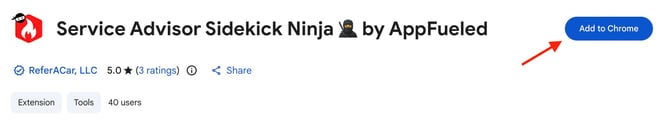
- Click Add Extension
-
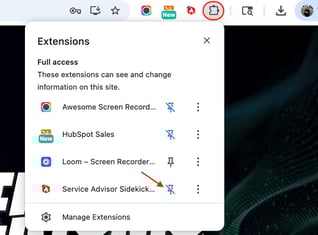
Once installed, pin the extension (click the puzzle icon → pin Sidekick Ninja)
🔄 Step 4: Refresh Tekmetric
Return to your Tekmetric tab and refresh the page.
You should now see the Sidekick Ninja panel appear on the right side of your Tekmetric screen.

🎙️ Step 5: Allow Microphone Access
Sidekick Ninja requires microphone access.
-
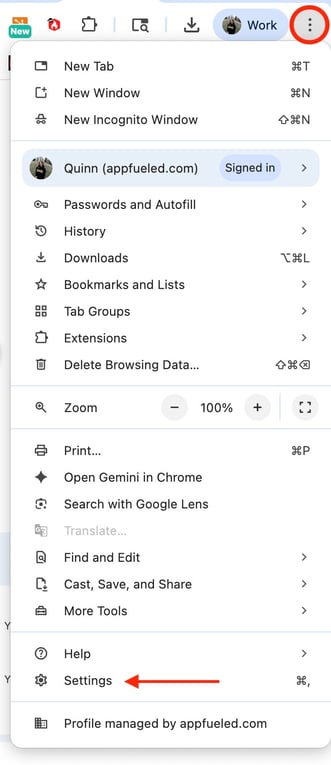
Open Chrome Settings
-
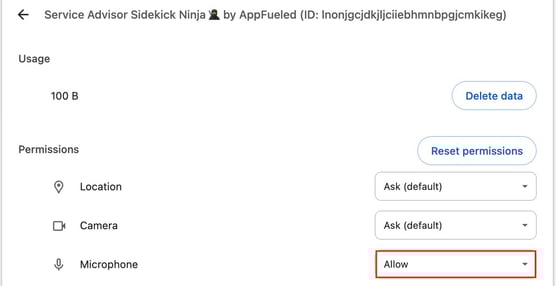
Go to Privacy & Security → Site Settings → Service Advisor Sidekick Ninja 🥷 by AppFueled — chrome-extension
-
Make sure microphone access is Allowed for the Sidekick Ninja
👤 Step 6: Log In to Sidekick Ninja
Log in using your AppFueled ‘Staff’ 2-Way Portal login credentials
(these credentials are provided by AppFueled).
✅ You’re Ready to Go!
Once logged in, Sidekick Ninja is ready to assist with service advisor workflows directly inside Tekmetric.