
Watch this 👀**step-by-step guide**
(Video Coming Soon)
---
MUST HAVE ADMIN PANEL ACCESS TO PROCEED
🧭 Step 1: Navigate to the Bulk List Builder
-
Log in to the Admin Panel
-
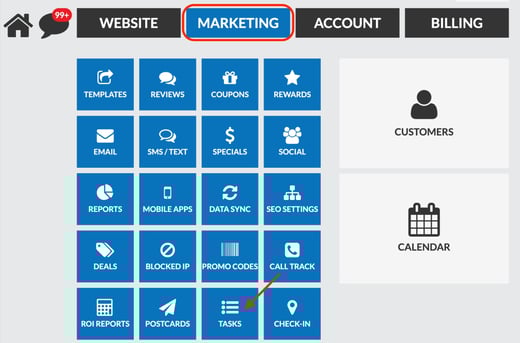
Go to Marketing → Tasks
-
Click Add Tasks
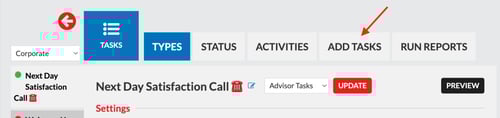
This tool lets you generate custom call or text lists based on filters you control.
🔍 Step 2: Select Your Task Type
Choose the follow-up task type you want to generate. Examples include:
-
No Recent Visits — customers who haven’t visited in X months
-
Reopened Missed Sale — customers with approved services you want to call back
Select the task type that matches your outreach objective.
🎯 Step 3: Apply Your Filters
You can build extremely targeted lists using a wide range of filters.
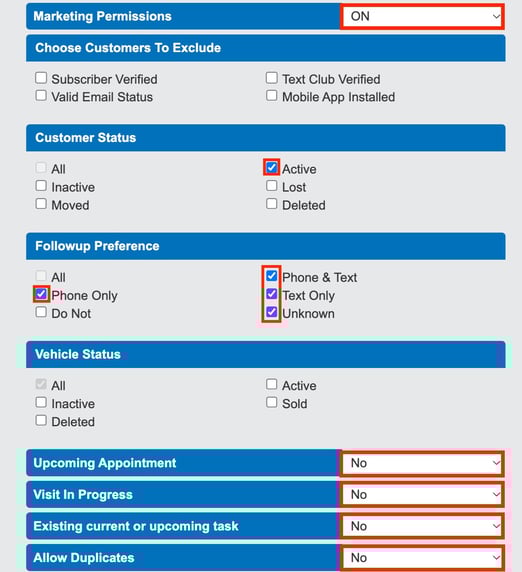
Regardless of your goal, we strongly recommend applying the following filters every time to protect compliance and avoid duplicate outreach.
Marketing Permissions
✔️ Marketing Permission = ON
Customer Status
✔️ Active
Follow-Up Preference
Select all options that allow communication:
-
Phone & Text
-
Text Only
-
Unknown
-
Phone Only
Status Filters
Make sure each of these is set to NO:
-
Upcoming Appointment
-
Visit In Progress
-
Existing Tasks
-
Current or Upcoming Tasks
-
Allow Duplicates → NO (prevents double outreach)
Date Range
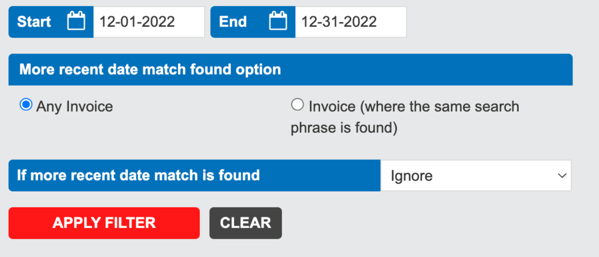
Select the dates you want to pull customer activity from.
Example: Dec 1, 2022 – Dec 31, 2022
If a most recent date match is found, select Ignore.
After all filters are set, click Apply Filters.
📋 Step 4: Review Your Generated Call List
You will now see a list of all customers who meet your criteria.
Example:
“28 customers who have not visited since December 2022”
You can click any customer and verify their visit history in the 2-Way Portal.
➕ Step 5: Create Follow-Up Tasks for the Entire List
-
Click Add New Tasks
-
Choose the Follow-Up Date for these tasks to appear in the queue
-
Optionally assign a staff member
-
Select a Task Status
-
Click Add
The system will automatically create one task per customer.
These tasks will appear in the team’s task feed (or the assigned user’s feed) on the date you selected.
📞 Step 6: Call & Text From the Task Queue
On the follow-up date, all tasks will appear in the Current Tasks list.
From each task, staff can:
-
Make the phone call
-
Send a text message
-
Use prebuilt phone or SMS scripts
-
Log activity
-
Mark the task as completed
This creates a clean, coordinated workflow for slow-day outreach or re-engagement campaigns.