
Follow these steps below to create the coupon, link it to a deal, and generate a voucher code
Watch this 👀**step-by-step guide**
Video Coming Soon!
---
MUST HAVE ADMIN ACCESS TO PROCEED
⚙️ Step 1: Log In to the Admin Panel
Go to InstantAutoSite Admin Panel.
Enter your credentials to access your dashboard.
🎫 Step 2: Create the Coupon
-
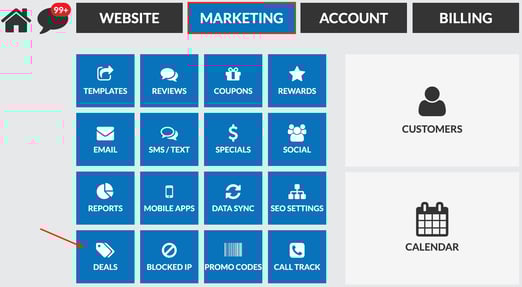
Go to Marketing → Deals
-
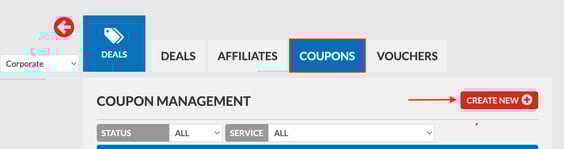
Coupons →Create New
-
Fill out all required coupon details
- make sure published status is toggled ON
-
Click Update
This creates the coupon that will later be assigned to customers.
🧩 Step 3: Create a Deal and Attach the Coupon
-
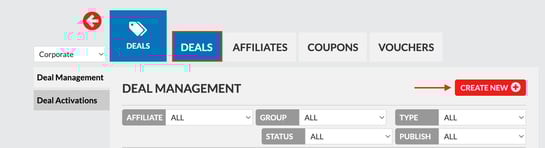
Deals →Create New
-
Enter all required deal information
- ensure the deal is toggled ON
-
Click Update
Once the deal is created, additional options will appear.
-
Scroll down to Deal Coupons
-
Select the coupon you just created and pick a quantity
-
Click the green Assign Deal Coupon button

-
Click Update
This links the coupon to the deal.
🎟️ Step 4: Create a Voucher Code
-
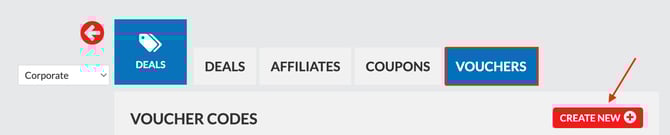
Go to Deals → Vouchers
-
Click Create New
-
Enter the voucher code the customer will use in the app to receive the coupon.
-
Under Assign Deal, select the deal you just created
-
Click Update
Step 6: Add your Limitations
1. Go Back to Deals → Find the desired deal →Click the edit icon
2. Scroll down to deal voucher codes
IF step 5 was completed correctly you should see "view assigned codes"
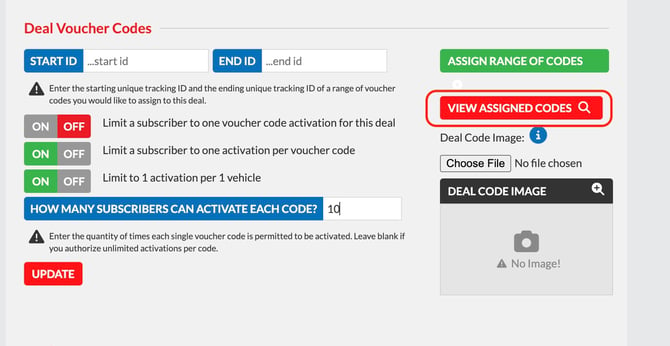
3. Add your limitations for your deal
Only want a subscriber to activate the code once? Toggle "Limit a subscriber to one activation per voucher code" ON
Only want the first 10 who see the deal to be able to activate it? Input 10 for "HOW MANY SUBSCRIBERS CAN ACTIVATE EACH CODE?"
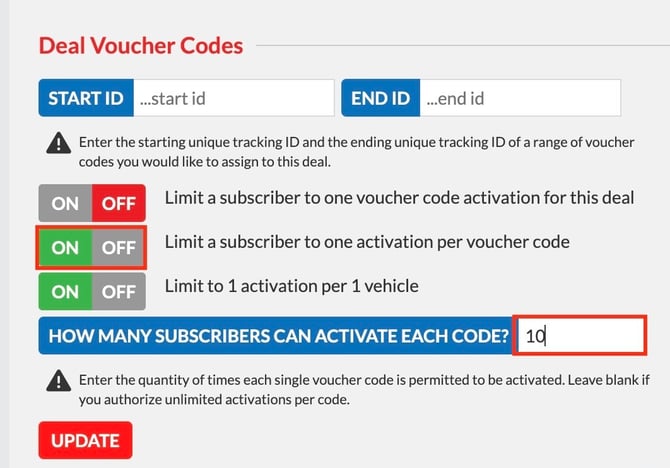
If you created or assigned multiple voucher codes make sure to consider "limit a subscriber to one voucher code activation"
4. Make sure to click update!
✅ Result
You can now share the voucher code with your customer.
When the customer enters this code in the app, they will automatically receive their new coupon.