
Watch this 👀**step-by-step guide**
---
MUST HAVE ADMIN ACCESS TO PROCEED
🧭 Step 1: Log In to the Admin Panel
Log into your Admin Panel to access staff management tools.
👥 Step 2: Navigate to Staff Settings
Go to:
Account → Staff
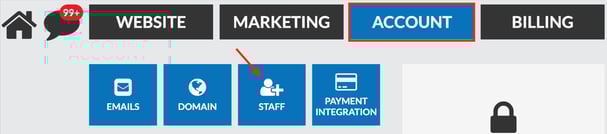
This will display your full list of staff users.
✏️ Step 3: Select or Create the Staff User
-
Find the staff member you want to update and click the Edit Icon to the right of their name.

-
If the staff member does not yet have a user profile, you must create one first
👉 Click here to learn how to create a staff user
📸 Step 4: Upload a Staff Photo
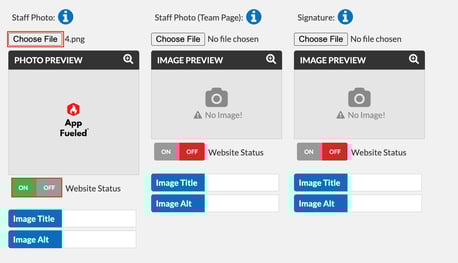
Scroll down to the Staff Photo section and upload an image that meets the following requirements:
-
File size: Up to 500 KB
-
Accepted formats: JPEG / PNG / GIF
You may also update additional profile information:
-
Title
-
Bio
-
Certifications
This information will display publicly on your staff page.
🌐 Step 5: Enable Website Visibility
Toggle Website Status → ON for the staff photo as well as all other profile information you would like displayed publicly.
💾 Step 6: Save Your Changes
Scroll to the bottom and click Update.
Your staff member will now display on your website with their photo and profile details.