
Watch this 👀**step-by-step guide**
---
MUST HAVE ADMIN ACCESS TO PROCEED
🧭 Step 1: Log In to the Admin Panel
Log into your Admin Panel to access staff management tools.
👥 Step 2: Navigate to Staff
Go to:
Account → Staff
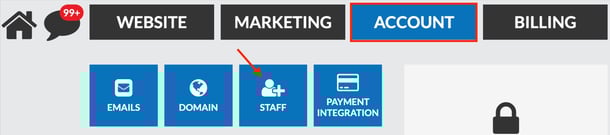
➕ Step 3: Create a New User
-
Click Create New
-
Under User Type, select Staff
-
Toggle Active Status → ON
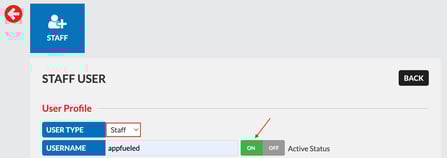
📝 Step 4: Enter Required Information
Fill out the required fields:
- Username
-
Email
-
Password
-
Verify Password
-
First Name (toggle Website Status → ON if this user should appear on the staff page)
-
Last Name
The remaining fields — are optional and can be completed as needed.
⚙️ Step 5: Set User Preferences
Preferences can be configured based on your workflow, but we strongly recommend turning on the following:
Form Alerts
Appointment Cancelled Alert
Appointment Form Alert [if on the non 2-way appointment form]
New Reservation Alert [if using Google Book now, or new reservation booking tool]
Request To Call Alert
Request To Text Alert
Reservation Updated Alert
Contact Form Alert
Google Review Alert
Testimonial Form Alert [feedback]
App Alerts
Followup Reminder Alert
Incoming Live Chat Message Alert
Incoming Message Alert
Incoming Phone Call Alert
Incoming Text Message Alert
New Chat Phone Call Alert
New Live Chat Alert
New Text Message Alert
Note Reminder Alert
*Unless you are an admin" uncheck these:
System Information [invoice email, etc.]
Tips & News
Location Settings
💾 Step 6: Save
Scroll to the bottom and click Update.
Your new staff user is now created and active in your system!