
Overview
This article explains how to change membership pricing, discounts, or coupon terms in AppFueled—and, more importantly, how those changes impact existing members and auto-renewal behavior.
⚠️ Important:
You can only have one active membership at a time.
Understanding how this works is critical to avoid unintentionally affecting your current members or recurring revenue.
🔄 How Membership Changes Work
When you want to change membership terms (such as pricing, discounts, or coupons), you must create a new membership.
This design:
-
Protects existing members from unexpected changes
-
Allows you to update terms for future sign-ups
You cannot edit an active membership to change its core terms.
📋 What Happens When You Create a New Membership
When a new membership is created and activated:
-
The old membership is automatically turned off
-
Existing members keep their original terms
-
Pricing, discounts, and benefits do not change
-
-
Auto-renew is disabled for all members on the old membership
-
Only new members receive the new membership terms
-
The new membership can have auto-renew enabled for new sign-ups
👥 Impact on Existing Members
✅ Protected (Grandfathered) Terms
Existing members are fully protected:
-
No price increases
-
No benefit changes
-
No discount changes
They continue under their original membership until it expires.
🔕 Auto-Renew Is Disabled
Because the old membership is deactivated:
-
Members will not be automatically charged at renewal
-
They must manually renew or sign up again
-
If they re-enroll, they receive the new membership terms
🆕 When You Need to Create a New Membership
You must create a new membership anytime you want to change:
-
Pricing or subscription cost
-
Discount percentages or amounts
-
Coupon codes or promotions
-
Billing frequency or payment terms
⚙️ Steps to Create a New Membership
MUST HAVE ADMIN ACCESS TO PROCEED
Step 1: Log In to the Admin Panel
Go to the InstantAutoSite Admin Panel and log in using your credentials to access your dashboard.
Step 2: Navigate to Memberships
From the Admin Panel, go to:
Marketing → Memberships
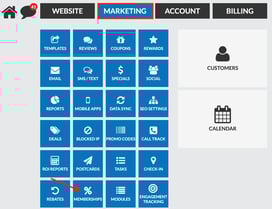
Click Create New

Step 3: Configure the New Membership
Create your new membership using the updated terms you want to apply, including:
-
-
Membership Pricing
-
Membership Discounts
-
Membership Coupons
-
Then:
-
-
Configure auto-renew settings (if desired)
-
Toggle Active Status ON
-
Click Update
-
⚠️ Activating the new membership will automatically deactivate the previous membership.
Step 4: Communicate Changes to Existing Members (Recommended)
Since existing members will not automatically transition to the new membership, we recommend notifying them about:
-
-
Auto-renew being disabled
-
How to manually renew
-
New membership options available
-
- If you would like to send out a custom blast submit a request here!
Business Continuity Planning
Because members don’t auto-transition:
-
Expect some drop-off as old memberships expire
-
Plan renewal or conversion campaigns
-
Prepare your team for customer questions
🧠 Summary: Key Takeaways
-
✅ Only one active membership can exist at a time
-
🔄 Changing terms requires creating a new membership
-
🛡️ Existing members are grandfathered into old terms
-
🔕 Auto-renew is disabled for old memberships
-
🆕 Only new sign-ups receive new terms
-
🔁 Auto-renew can be enabled on the new membership
Why This Matters
This system protects your customers from unexpected changes while giving you flexibility to evolve your membership offerings responsibly.