
Watch this 👀**step-by-step guide**
(Video coming soon)
---
Follow these quick steps to update your payment information in the admin panel.
MUST HAVE ADMIN ACCESS TO PROCEED
⚙️ Step 1: Log In to the Admin Panel
Go to InstantAutoSite Admin Panel.
Enter your login credentials to access your account.
💡 Tip: Make sure you’re logging into the Admin Panel, not the Two-Way Portal.
👤 Step 2: Create a New Admin User
-
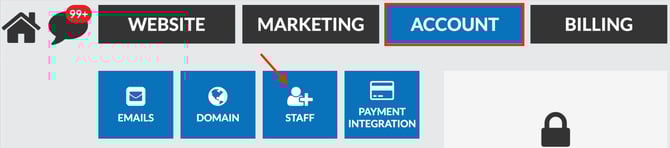
Navigate to Account → Staff
-
Click Create New

-
Set the User Type to Admin
-
Toggle Active Status → ON
- Input the desired email you want billing notifications to send to
⚙️ Step 3: Configure Notification Preferences
For a billing-only contact, you may uncheck all notifications and preferences unless otherwise needed.
This ensures the user only receives essential billing-related access.
🔐 Step 4: Enable Required Access Settings
Make sure the following settings are turned ON for the billing contact:
-
User Settings
-
System Information
-
Tips & News
-
Location Settings
These permissions allow proper visibility into billing, account, and system-level information.
💾 Step 5: Save Your Changes
Scroll to the bottom of the page and click Update.
Your billing contact is now successfully added and configured in the Admin Panel.