
Watch this 👀**step-by-step guide**
(Video Coming Soon)
---
Follow these steps to adjust your appointment booking time frames.
MUST HAVE ADMIN PANEL ACCESS TO PROCEED
⚙️ Step 1: Log In to the Admin Panel
Go to InstantAutoSite Admin Panel.
Enter your credentials to access your account dashboard
📂 Step 2: Navigate to Reports
Click:
MARKETING → TASKS → RUN REPORTS
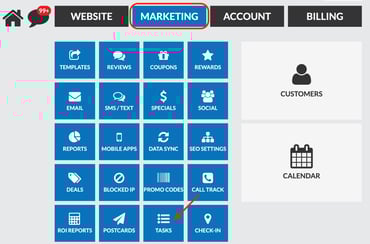

This will open your reporting dashboard.
💬 Step 3: Run the Text Report
-
Select Text Report from the report options.
-
Choose all desired shop locations.
-
Select the date range you want to review.
- 💡 Tip for Accurate Reporting: Allow at least 2 weeks to pass after your selected end date.
-
If your report ends on October 31st, wait until November 14th to run it.
-
- 💡 Tip for Accurate Reporting: Allow at least 2 weeks to pass after your selected end date.
This ensures time for:
-
-
-
Appointments to be completed
-
Repair orders to close
-
Revenue generated within 2 weeks after the call
to properly attribute back to the original call
-
-
4. Click Submit

🎧 Step 4: Filter the Report
Once the report loads, you can filter the settings to target the slow day campaign.
-
Filter by Type of Text → Select Customers
-
Filter by Template Name → Select Slow Day
Click Apply Filters to refresh the results.
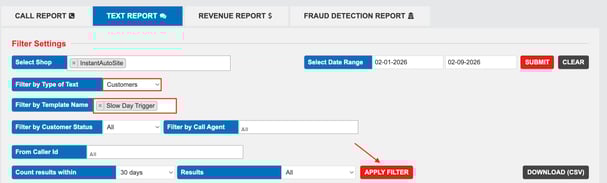
📥 Step 5: Download the Report
Click Download CSV to export the data.
📈 Result
Your report will include key performance data such as:
- Revenue generated
- Number of appointments booked
- Campaign engagement metrics
This allows you to measure the effectiveness of your text campaigns and make data-driven decisions.